Sales Management
Sell products to customers and complete delivery
On This Page
Sales Overview
Sales management helps you record and track all sales activities. From quotation, creating sales orders, product delivery to returns, the system provides complete sales workflow management to improve sales efficiency.
Sales Quotation
Create quotes for customers
Sales Order
Record products sold to customers
Sales Delivery
Ship products and reduce inventory
Sales Returns
Process customer returns
Sales Quotation
Sales quotation provides product prices to customers. After customer confirmation, it can be converted to an order.
Enter Quotation Management
Click 'Sales Management' → 'Quotation' in the left menu
Click 'Add'
Click the 'Add' button in the top right
Select Customer
Choose the customer to quote
Add Products
Click 'Add Products', select items and enter quote price
Set Validity Period
Set the quotation validity period
Save Quotation
Click 'Save' to create the quotation
Tip
- Confirmed quotations can be directly converted to sales orders, no need to re-enter
- Quotations can be printed and sent to customers for confirmation
Create Sales Order
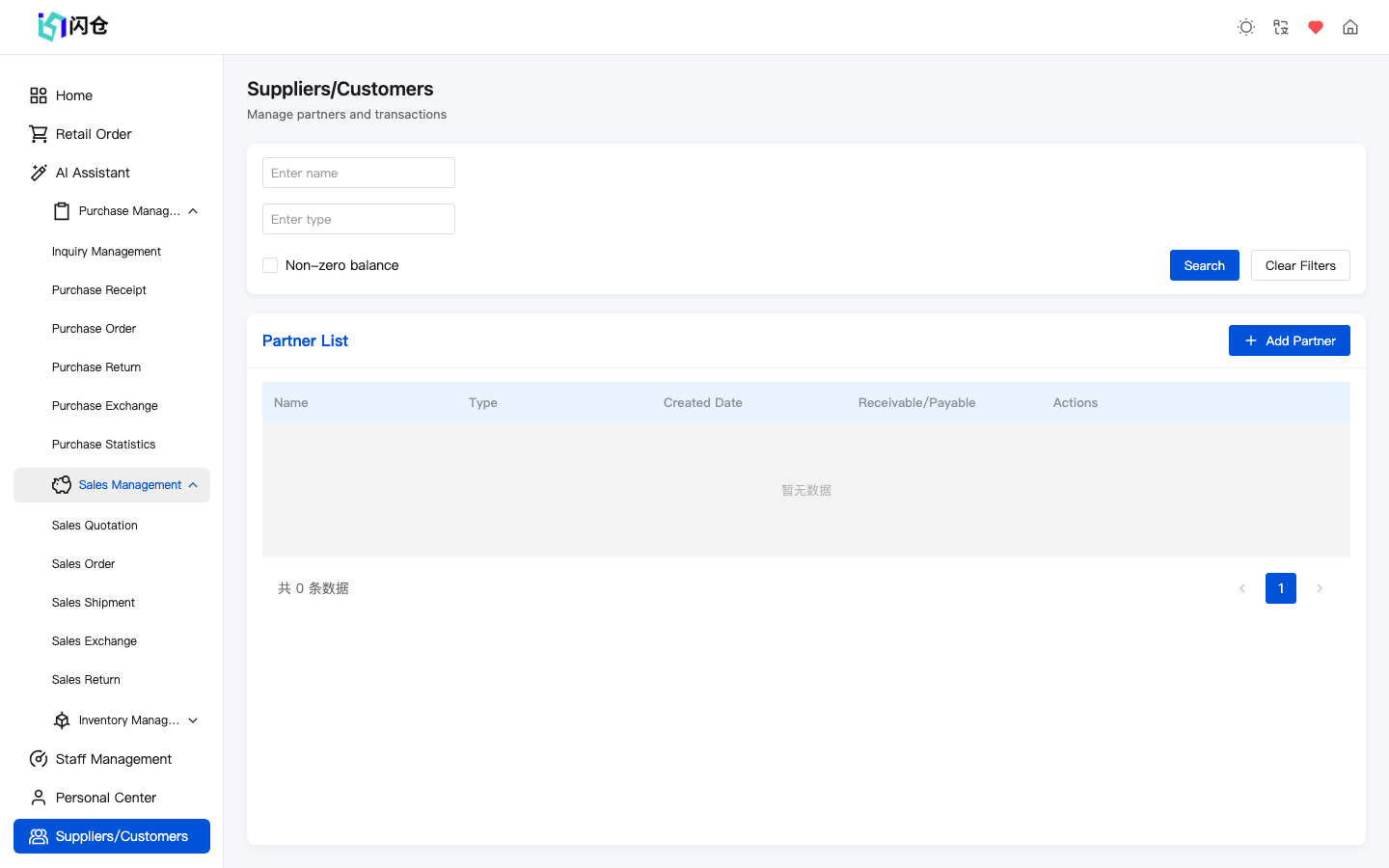
Enter Sales Orders
Click 'Sales Management' → 'Sales Order' in the left menu
Click 'Add'
Click the 'Add' button in the top right
Select Customer
Choose the customer for this sale from the dropdown
Add Products
Click 'Add Products', select items, enter quantity and unit price
Confirm Information
Check order details including products, quantities, and amounts
Save Order
Click 'Save' to create the order
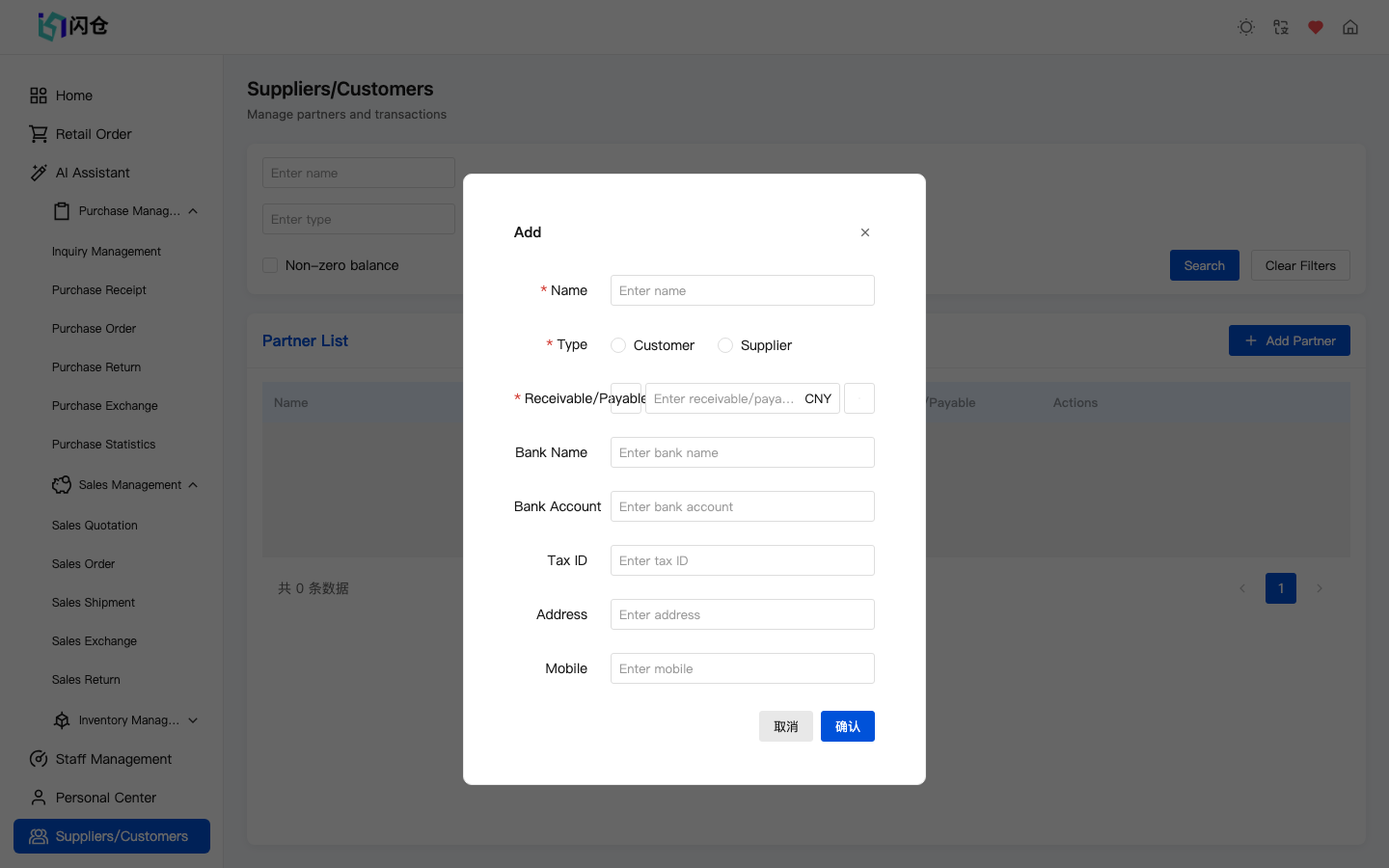
Tip
- After creating a sales order, products are not automatically deducted - you need to complete the delivery process
- System automatically calculates total order amount
Sales Delivery
When a sales order needs shipping, create an output bill. Note: stock is NOT deducted the moment you submit — it is deducted only after the bill is Approved (if you turned off the approval flow in Settings, submitting auto-approves).
Enter Delivery Management
Click 'Sales Management' → 'Sales Delivery'
Create Delivery
Click 'Add' button, or generate from sales order
Select Warehouse
Choose which warehouse to ship from
Confirm Products
Verify delivery products and quantities, ensure sufficient inventory
Confirm Delivery
Click 'Confirm Delivery', inventory will be reduced
What happens after delivery?
- • Stock decreases only after the bill is approved
- • The system records the output details for tracing
- • Customer receivable increases (if on credit)
Sales Returns
When customers return products, create a return order to process the return.
Enter Return Management
Click 'Sales Management' → 'Sales Returns'
Create Return Order
Click 'Add' button
Select Customer
Choose the returning customer
Select Return Products
Choose products to return from those sold to this customer
Enter Return Information
Enter return quantity and reason
Confirm Return
Click 'Confirm' to complete the return
Return Processing
- • Returned products are added back to inventory
- • Customer receivables decrease accordingly
- • System records return reasons for analysis and improvement
Sales Report
The Sales Report shows sales trends, best-seller ranking and restock suggestions to help you optimize operations.
Available Statistics
- • Total sales amount (by time period)
- • Sales amount by customer ranking
- • Sales quantity by product ranking
- • Sales trend analysis
- • Gross profit analysis
Statistics Usage
- • Identify VIP and potential customers
- • Analyze best-selling and slow-moving products
- • Develop promotional strategies
- • Set sales targets
- • Evaluate sales performance