Getting Started
Start from scratch and learn to use FlashWare in 5 minutes
On This Page
Business Workflow
Understand the complete purchase and sales workflow, and how the approval mechanism works.
Purchase Workflow
Sales Workflow
Approval Mechanism
The system enables approval workflow by default. Each document requires manual approval before taking effect.
- After document creation, status is 'Pending Approval' and does not affect inventory or finances
- After clicking 'Approve', the document takes effect and inventory/financial data is updated
- After purchase receipt approval, new goods enter 'Purchase Statistics' for secondary confirmation
How to Disable Approval
- Disable 'Enable Approval Workflow': Documents are auto-approved after creation, suitable for single-user scenarios
- Disable 'Purchase Statistics Approval': New goods are auto-added to inventory after receipt approval, no secondary confirmation needed
Path: Left menu → Settings → System Settings
System Overview
FlashWare is a free inventory management system designed for small and medium-sized businesses. Whether you run a small shop or manage multiple warehouses, FlashWare helps you easily manage purchasing, sales, and inventory.
Completely Free
All features are permanently free with no hidden fees
Multi-platform Support
PC web and mobile data sync in real-time
Easy to Use
Clean and intuitive interface, no training required
Data Security
RSA 2048-bit encryption ensures data security
Access the System
Access the System
PC Access
- 1Open your browser (Chrome or Edge recommended)
- 2Enter the URL: jhsc.top
- 3Press Enter to access the login page
Mobile Access
- 1Open your mobile browser
- 2Enter the URL: jhsc.top/mobile
- 3Add to home screen for quick access
Register Account
First-time users need to register. Registration is completely free.
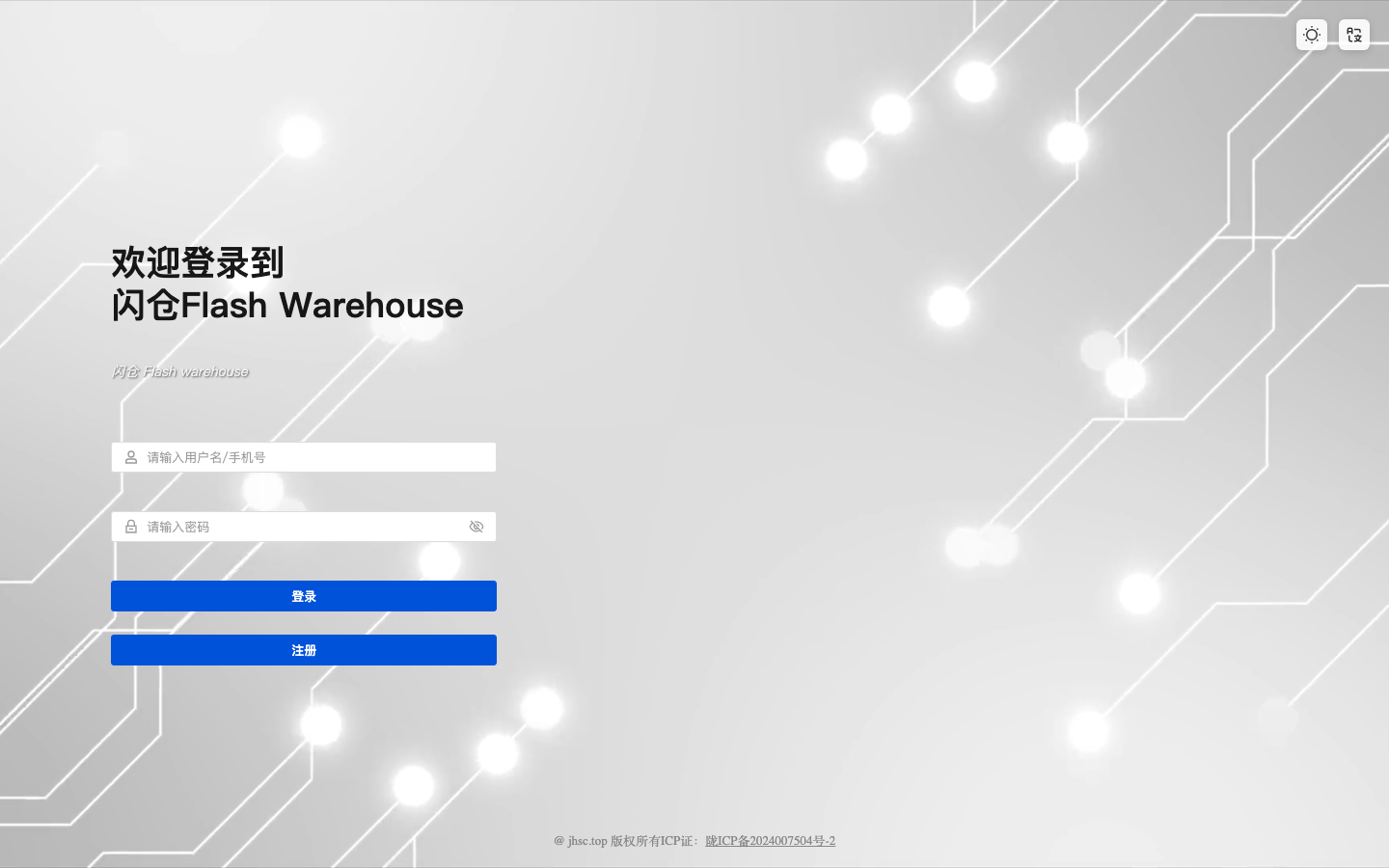
Click Register Button
On the login page, click the 'Register' button to open the registration window
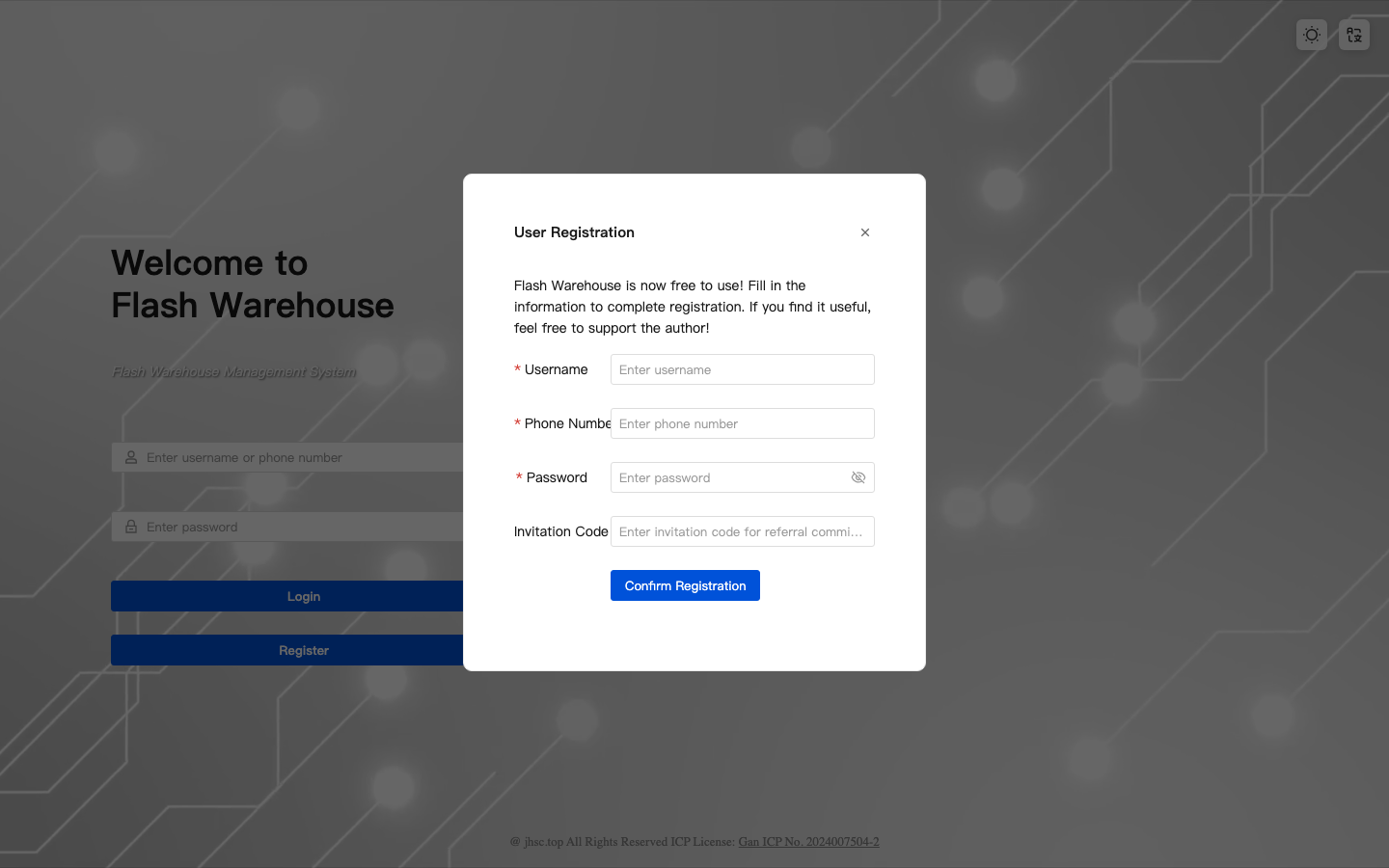
Enter Username
Enter your desired username (4-20 characters). Phone number or memorable name recommended
Enter Phone Number
Enter your phone number for password recovery. Please ensure it's correct
Set Password
Set a secure password (8+ characters with numbers and letters recommended)
Confirm Password
Re-enter your password to confirm
Complete Registration
Click 'Register Now' button. You'll be redirected to the login page after success
Tip
- Remember your username and password. Consider writing them down somewhere safe
- If you forget your password, you can recover it using your phone number
Login
Use your registered account to login.
Enter Username
Enter your registered username or phone number
Enter Password
Enter your login password
Click Login
Click the 'Login' button to enter the system
Having trouble logging in?
- Wrong password: Check your password, mind the case sensitivity
- Forgot password: Click 'Forgot Password' to reset via phone
- Account not found: Please register first
Interface Introduction
After logging in, you'll see the main interface. Let's get familiar with each area:
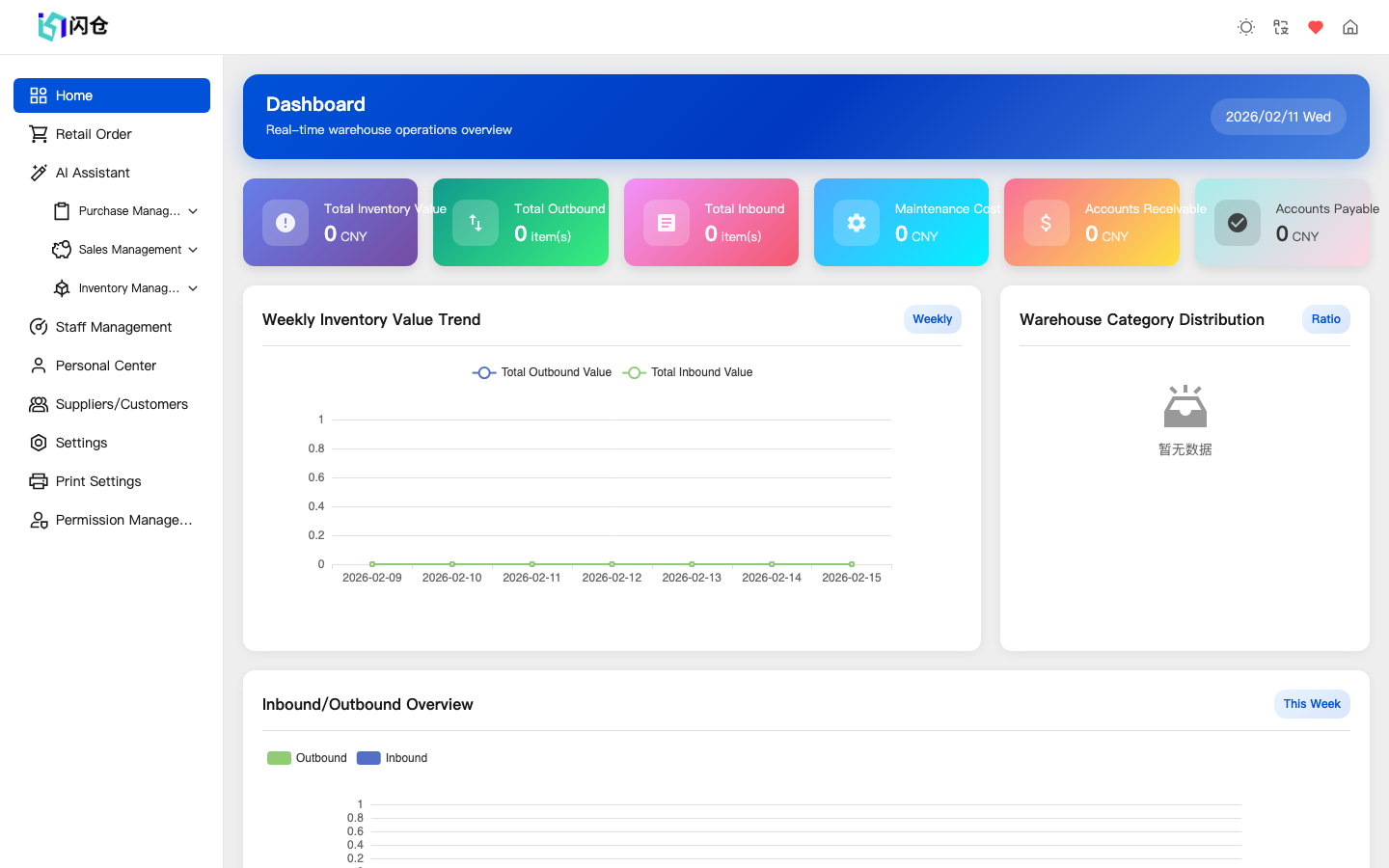
1Left Sidebar
All function entries are here. Click menu items to access functions, click arrows to expand/collapse submenus.
2Top Navigation
Shows current user, notifications, language switch, etc. Click your avatar to modify profile or logout.
3Main Content Area
This is the work area where the selected function page is displayed.
4Dashboard
Homepage displays key business data: today's sales, inventory alerts, to-do items, etc.
Quick Start
After registration and login, set up basic data in this order: